Creating an inventory
The inventory scene is responsible of displaying all items in the player’s inventory, allowing them to perform actions on them. These actions can be simple (look, open, close…) or more complex, such as combining them with another inventory item or also a room item.
Escoria allows you to setup and display the player inventory with great flexibility. Therefore, you may build your inventory scene in freedom, define the way it shows up and hides (possibly with an animation), etc.
Build the scene
You may construct the inventory scene so it looks exactly the way you want it. In this matter, you may use all Godot nodes at your disposal to achieve your goal freely. It can feature images, sprites, areas, controls that you can script using GDScript at your needs.
For example, you may want to display your inventory at all time in a given area of the screen, or define a clickable button to show it, or hot focus areas waiting for the mouse pointer to trigger the inventory. If it is hidden by default, you can either pop it on the screen, or define hide and show animations. This is totally at your hand to be done fully with Godot features.
Escoria is designed to be no barrier - it only requires 2 specific nodes to be present in the inventory scene tree. These 2 nodes are described in the section below.
Necessary Escoria nodes
The inventory scene is a special Escoria scene that involves two nodes in particular:
ESCInventory: this is the root node of the inventory scene. It inheritsControlto allow user inputs (using mouse, keyword or game controller), and its role is mainly to act as a Facade to inventory, allowing the addition and removal of items in its defined container.Note
Note: you may use your own custom script extending
ESCInventoryif you need to add more functions to this node.ESCInventoryContainer: this is the container node that will display the items present in the inventory. This node has to be manually created, as it needs to be any of Godot’sControl/Container/*nodes (HBoxContainer,VBoxContainer,GridContainer…), and theres://addons/escoria-core/ui_library/inventory/esc_inventory_container.gdscript attached to it afterwards.Note
Unfortunately Godot doesn’t allow adding an
ESCInventoryContainernode to the scene and changing its type to any of GodotControl/Container/*while keeping its attached script. We will provide a simplified way to insert this node to your scene, asking you to choose its actual type.
This is an example of an inventory scene fully composed (part of the simple-mouse plugin):
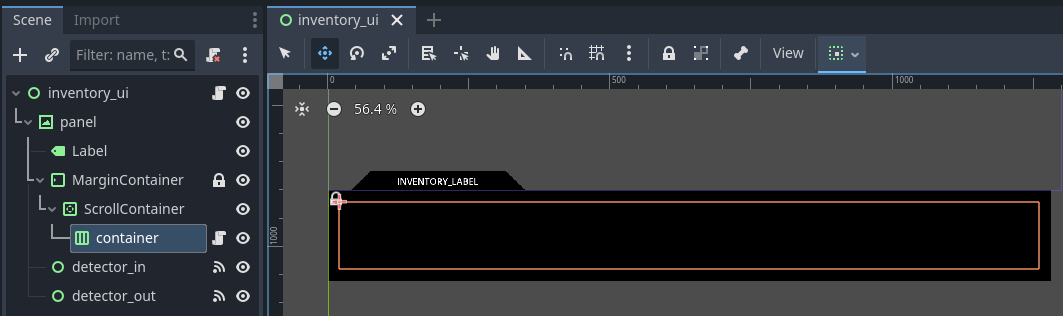
After the ESCInventoryContainer node is added to the scene, it needs to be
targeted by the ESCInventory node. To do so, select the ESCInventory
node, then in the inspector, select the target ESCInventoryContainer as
Inventory UI parameter.
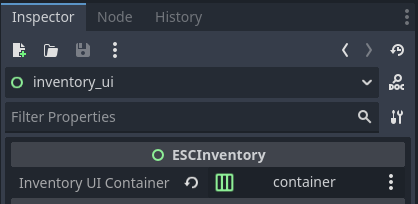
The scene can then be saved, either in a plugin or in a new res://*/
folder, at your preference.
Inserting/Removing items to/from inventory
ESCItem define usable and pickable items. You may select an inventory
texture in the Inspector, that will be used when the item is added to the
inventory.
Adding and removing an item to/from the inventory can be performed in two ways:
in an ASHES script using
inventory_addandinventory_removefunctions. Both functions take theglobal_idof the item as parameter.in GDScript, using the
escoria.inventory_manager.add_item(item_id: String)andescoria.inventory_manager.remove_item(item_id: String)functions.
Creating inventory item scenes
An inventory item is an ESCItem scene that Escoria can load from the
configured inventory items path. In the default project template, that path is
res://game/items/inventory.
For each inventory item:
Create a new scene with
ESCItemas the root node.Set a unique
Global ID. This is the id used by ASHES commands such asinventory_add("r5_pen")and by targeted events such as:use "r5_empty_sheet".Add a visible child node, often a
Sprite2D.Add a
CollisionShape2DorCollisionPolygon2Dso the item can receive mouse input when it appears in a room.Create an ASHES script for the item and assign it to the
Esc Scriptproperty.Set
Inventory Textureif the item should use a different image in the inventory UI than it uses in the room.
A simple item that can be picked up from a room might have this event in its ASHES script:
:pickup

  inventory_add("r5_pen")
  set_active("r5_pen", false)
After this event runs, the room object is hidden and the inventory manager adds
the item with global id r5_pen to the player’s inventory.
Normal inventory actions
If an inventory item can be inspected or used by itself, define a normal event in that item’s ASHES script:
:look

  say("player", "A fountain pen. Still full of ink.")

:use

  say("player", "I need something to write on.")
The Default Action Inventory property controls which verb Escoria should
use when the player clicks the item in the inventory. For example, if the pen’s
Default Action Inventory is use, clicking the pen in the inventory uses
the use action.
This does not automatically make Escoria wait for another object should the item require another object to perform the desired action.. If the action should use a second clicked object, configure the item as described below.
Targeted inventory interactions
Some inventory actions need two objects: a source item and a target object.
Examples include:
use pen on paper
use key on door
give letter to character
use wrench on machine
For these interactions, set the source item’s
Actions Requiring Target Object property. List the action verbs that should
make this item wait for a second clicked target object.
For example, if the inventory item r5_pen has this value:
actions_requiring_target_object = PackedStringArray("use")
then selecting use on the pen does not immediately run plain :use.
Escoria treats the pen as the current source item, waits for the player to
click another object, and then looks for a targeted event.
Hint
You can set the property directly in the Godot editor, as well!
The targeted event can be written on the source item’s script:
:use "r5_empty_sheet"

  say("player", "Ok, let's write something down.")
In this example, the pen is the selected source item and r5_empty_sheet is
the second clicked target object.
The same pattern works with other verbs:
:give "r2_guard"

  say("player", "Here's the letter from the mayor.")
For this give example, the letter item should include give in
Actions Requiring Target Object.
Important
Actions Requiring Target Object is separate from
Default Action Inventory. If Default Action Inventory is use and
the item needs a second object, use must also be listed in
Actions Requiring Target Object. Otherwise Escoria treats the click as a
normal one-object action and looks for plain :use instead of a targeted
event such as :use "r5_empty_sheet".
Reverse targeted events and one-way combinations
Escoria can also try the reverse direction for targeted interactions. For
example, if the source item does not define :use "target_id", Escoria may
check whether the target object’s script defines :use "source_id".
This is useful when it reads more naturally to keep the event on the room object:
# door.esc

:use "r1_key"

  say("player", "The key fits.")
  set_global("door_unlocked", true)
If the interaction should only work in the direction written in ASHES, enable
Combine Is One Way on the relevant item. This prevents Escoria from trying
the reverse lookup for that targeted action.
Troubleshooting targeted actions
If Escoria reports an invalid action or missing event even though you wrote a targeted event such as:
:use "r5_wrench"
check the source inventory item. The action verb must be present in
Actions Requiring Target Object. Without that setting, Escoria does not
enter the targeted-action flow and will look for a normal one-object :use
event instead.
Useful ESCItem properties for inventory items
These ESCItem properties are especially relevant when building inventory
objects:
Global IDThe stable id used by ASHES scripts, inventory commands, save data, and targeted events.
Esc ScriptThe ASHES script that defines the item’s events, such as
:look,:use,:pickup, or:use "other_object".Default ActionThe action used when the item is clicked in a room and the UI chooses a default verb.
Default Action InventoryThe action used when the item is clicked in the inventory and the UI chooses a default verb.
Actions Requiring Target ObjectThe list of verbs that should make this item become the source/tool object and wait for a second clicked target object.
Combine Is One WayControls whether targeted interactions must be written in the same source to target direction that the player used, or whether Escoria may also try the reverse direction.
Use From Inventory OnlyRequires the item to be in the player’s inventory before the configured action can be used. This is useful for carried tools and objects, but should usually stay disabled for room objects such as buttons or scenery.
Inventory TextureandInventory Texture HoveredThe item’s normal and hovered images in the inventory UI. These can be different from the sprite used when the item appears in a room.
Tooltip NameThe text shown by tooltip UIs when the item is hovered.
Is InteractiveControls whether the player can interact with the item. Disable it for objects that should temporarily ignore input.
Hover Enabled,Hover Modulate,Hover TextureandHover ShaderBuilt-in hover feedback options for changing the item’s appearance while the pointer is over it.
Player Orients On ArrivalandInteraction AngleControl whether the player turns to a specific angle after walking to the item. This is useful for room objects that should be approached from a particular side.
Is ExitLets an
ESCItembehave as a scripted exit by running an:exit_sceneevent. Use this when leaving a room requires dialogue, checks, or a cutscene.Is Trigger,Trigger In VerbandTrigger Out VerbLet an item act as an area trigger that runs events when other items enter or leave its collision area.